Any application on demand and the secure-desktop confirmation
Applies to client 2.0.x and later. For tenant admins, approvers.
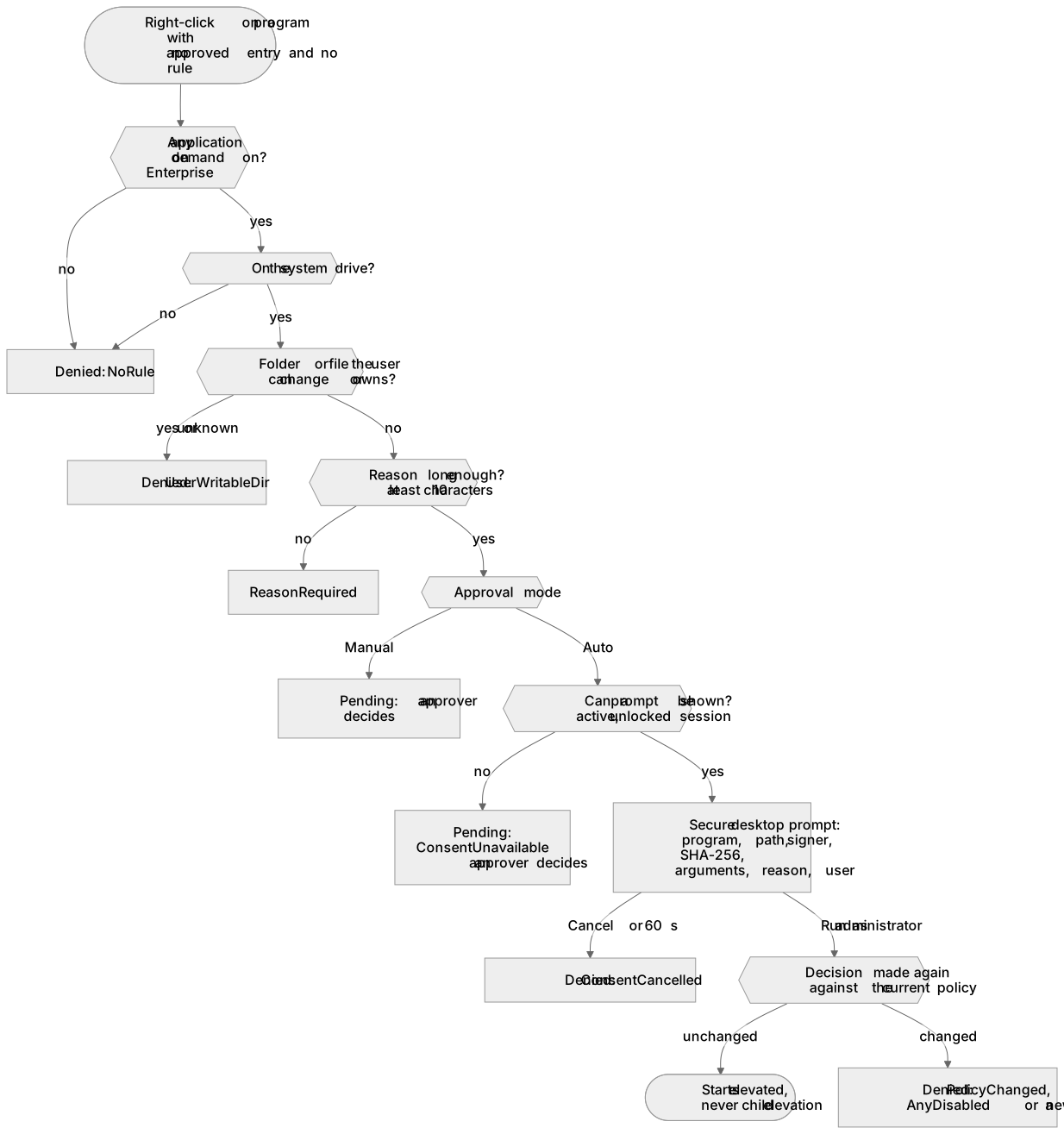
Without this setting a right-click request for a program that is neither on the approved list nor matched by a rule is denied with NoRule, whatever the approval mode. Allow any application on demand (Settings, Enterprise only) turns that last step into a match called any: users can elevate any program after giving a reason, with a full audit trail, without one rule per program.
What it allows
Section titled “What it allows”- Only on-demand requests (right-click, or Run a program with AdminExplorer…). Pre-approved programs are not affected.
- Only
.exe,.ps1and.msifiles on the system drive. A file on another drive staysNoRule. - Every earlier check still applies: path guard, denied paths, license, file kind, argument rules. An approved entry or a rule that matches always wins, with its own options.
- A reason is always required, at least 10 characters (or your minimum length, when that is higher), whatever the reason setting says.
- Child elevation is never granted for an
anymatch. - The SHA-256 of the file is always recorded in the audit record; the audit shows “Matched by: any”.
The portal refuses to turn the setting on without an Enterprise license. If the tenant later drops to Standard, the stored value stays but devices ignore it.
The user-writable folder rule
Section titled “The user-writable folder rule”An any match is refused with UserWritableDir when the user controls the file: the user can create files or folders in its folder, change its permissions or owner, owns the folder or the file, or can write to the file. When that cannot be determined the answer is also no (fail closed).
This stops a program running as the user from dropping something in AppData, on the Desktop, in Documents or in C:\Users\Public and elevating it with a ten-character reason. Programs installed under C:\Program Files or C:\Windows pass this rule; a user’s own download does not (and the Downloads folder is a built-in denied path anyway). Approved entries and rules are not subject to this rule; their audit records carry the “user-writable folder” flag instead.
The secure-desktop confirmation
Section titled “The secure-desktop confirmation”A program running as the user could call the AdminExplorer service itself and ask to elevate a system tool with its own arguments. The service knows who is asking, but not whether a person is at the keyboard. So with approval mode Auto, every any match is confirmed by the person on the secure desktop, like UAC:
- The screen switches to a separate desktop that only the system can open. The prompt shows the program, its full path, the signer (or “Unsigned”), the SHA-256, the arguments, the reason and the user.
- Cancel has the focus; Enter, Space and Esc cancel. Run as administrator becomes clickable after 1.5 seconds and reacts only to a real mouse click; keystrokes typed before the prompt appeared are discarded.
- No answer within 60 seconds counts as Cancel.
- After Run as administrator the service makes the whole decision again against the current policy and license, then starts the program.
| Outcome | Result |
|---|---|
| Run as administrator | Starts elevated (audit: consent allow and the time taken) |
| Cancel or timeout | Denied, ConsentCancelled |
| A prompt is already open in the session | Denied, ConsentBusy |
| No prompt possible (locked screen, a session that is not the active console or active remote session) | Pending, ConsentUnavailable: an approver decides in the portal. On a device that is not enrolled the request is refused |
| The policy changed meanwhile | Denied, PolicyChanged, AnyDisabled or the new deny reason |
With approval mode Manual the prompt is never shown: the approver decides. Approved entries and rules never show the prompt.
Why shells are powerful
Section titled “Why shells are powerful”A user who may elevate any program can elevate a shell or an administration tool (cmd.exe, powershell.exe, mmc.exe) and make lasting changes with it, for example add their own account to the local Administrators group. This setting is therefore equivalent to administrator rights on request, with a reason, a confirmation and a full audit trail. It is not a containment boundary.
Use it only where that is the intent, and add shells and tools that must stay out of reach to your denied paths:
{ "version": 2, "settings": { "approvalMode": "Auto", "reasonRequired": true, "reasonMinLength": 10, "approvalTtlMinutes": 60, "powerShellExecutionPolicy": "RemoteSigned", "allowAnyApplicationOnDemand": true }, "deniedPaths": [ "C:\\Windows\\System32\\cmd.exe", "C:\\Windows\\System32\\WindowsPowerShell\\v1.0\\powershell.exe", "C:\\Windows\\System32\\WindowsPowerShell\\v1.0\\powershell_ise.exe", "C:\\Windows\\System32\\mmc.exe", "C:\\Windows\\System32\\regedit.exe", "C:\\Windows\\regedit.exe" ], "applications": [], "rules": [], "tray": { "hideExit": true }}A denied path blocks the file for every on-demand request, approved entries and rules included (programs started normally from your pre-approved list are not checked against it). Review the audit log regularly with the kind and “Matched by” columns, and consider Manual approval for teams that should have a second pair of eyes.
Related guides
Section titled “Related guides”AdminExplorer documentation, published by Circle of Bytes ApS. Customers sign in at portal.adminexplorer.circleofbytes.com.