Microsoft Entra sign-in for your admins
For tenant admins.
By default your portal users sign in with a work account (Microsoft, Google or Okta, as offered on the sign-in page) or with a one-time email link, and are matched to a portal user by their verified email address. Connecting your own Microsoft Entra directory lets you decide in Entra who may sign in, and put Conditional Access in front of the portal.
How it works
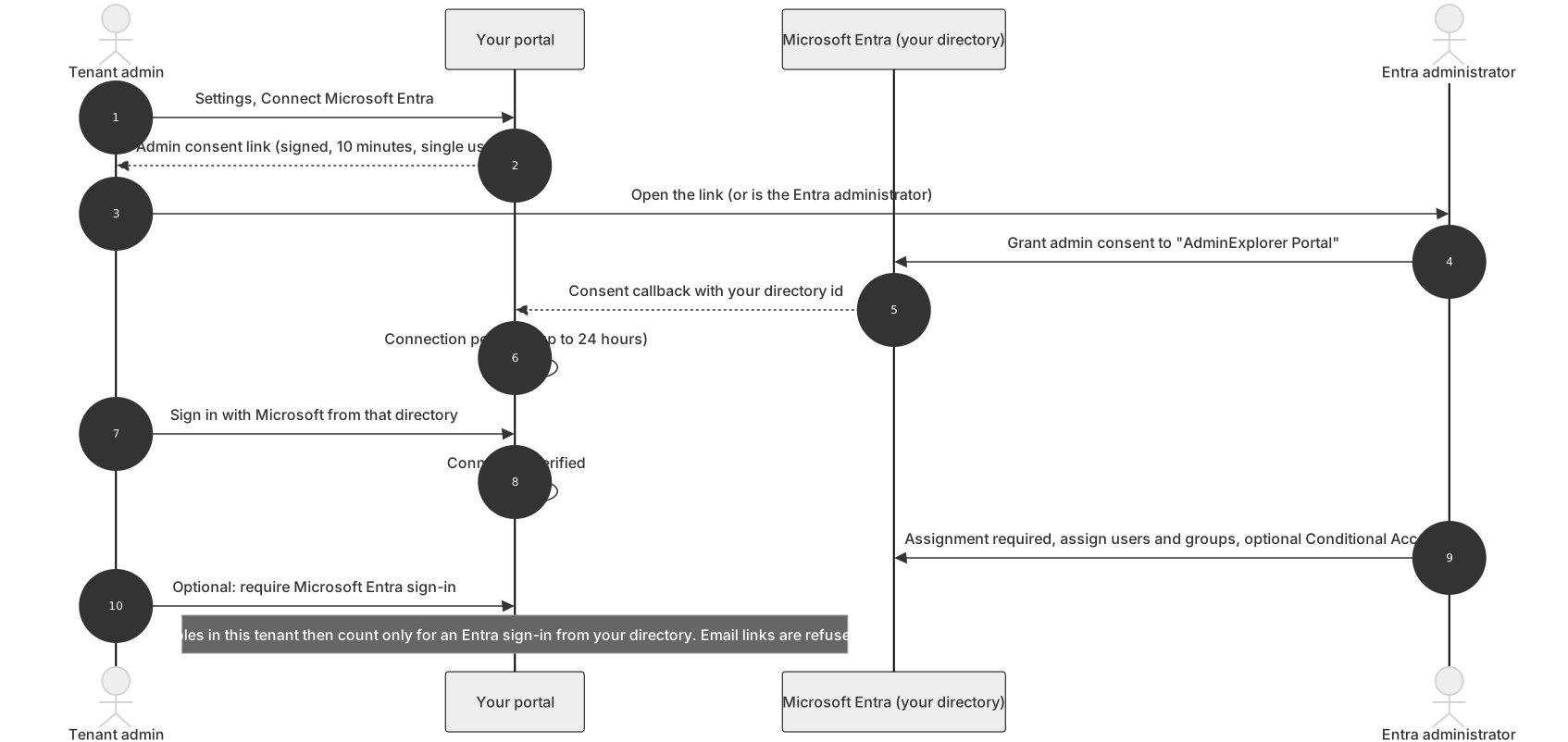
Section titled “How it works”The portal signs users in through the multi-tenant app AdminExplorer Portal. When an administrator of your directory grants admin consent to it, your directory gets its own enterprise application for that app. In that enterprise application you control assignment, Conditional Access and sign-in logs, like for any other SaaS application.
Connect
Section titled “Connect”- Under Settings, Microsoft Entra sign-in, choose Connect Microsoft Entra (tenant admin).
- A Global Administrator or Cloud Application Administrator of your directory grants the admin consent for “AdminExplorer Portal”. The consent link is signed, valid for 10 minutes and works once.
- The connection is now pending. Nothing is enforced yet.
Verify
Section titled “Verify”A connection counts only after one portal user with the tenant admin role in this tenant signs in with Microsoft from that directory. The settings page shows Sign in with Microsoft to verify. A pending connection lapses 24 hours after the consent; connect again after that.
Control who signs in, in Entra
Section titled “Control who signs in, in Entra”In the Microsoft Entra admin center of your directory:
- Enterprise applications: open “AdminExplorer Portal”.
- Properties: set Assignment required to Yes.
- Users and groups: assign the people or groups who may sign in. Each of them also needs a role in this portal (nobody is created automatically).
- Optional: a Conditional Access policy for the app (MFA, compliant device, locations). Sign-in logs for the app are in your Entra.
Require Microsoft Entra sign-in
Section titled “Require Microsoft Entra sign-in”Require Microsoft Entra sign-in for this tenant’s users (off by default, only with a verified connection):
- Roles in this tenant then count only for a sign-in through Microsoft Entra from the connected directory. Email links and other directories are refused with a clear message.
- It is checked at sign-in, on every request and whenever the session is refreshed, so a session started by email link before the change ends at its next refresh.
- Partner administrators and the provider’s administrators are not affected.
- To turn it on yourself you must be signed in with Microsoft from the connected directory, so you cannot lock yourself out.
- While it is on, the connected directory cannot be swapped; disconnect first.
Disconnect removes the connection and the requirement; email links work again.
Guests
Section titled “Guests”A B2B guest in your directory signs in through their home directory. Under “require”, a guest is therefore locked out. Invite such people as members of your directory, or do not turn the requirement on.
Sign-in sessions
Section titled “Sign-in sessions”A portal session survives a page reload and ends after 60 minutes without use or 12 hours at most. Signing out of the portal does not sign you out of Microsoft; close the browser on a shared computer.
Related guides
Section titled “Related guides”AdminExplorer documentation, published by Circle of Bytes ApS. Customers sign in at portal.adminexplorer.circleofbytes.com.