How AdminExplorer elevates
Applies to client 2.0.x and later. For tenant admins, approvers, auditors.
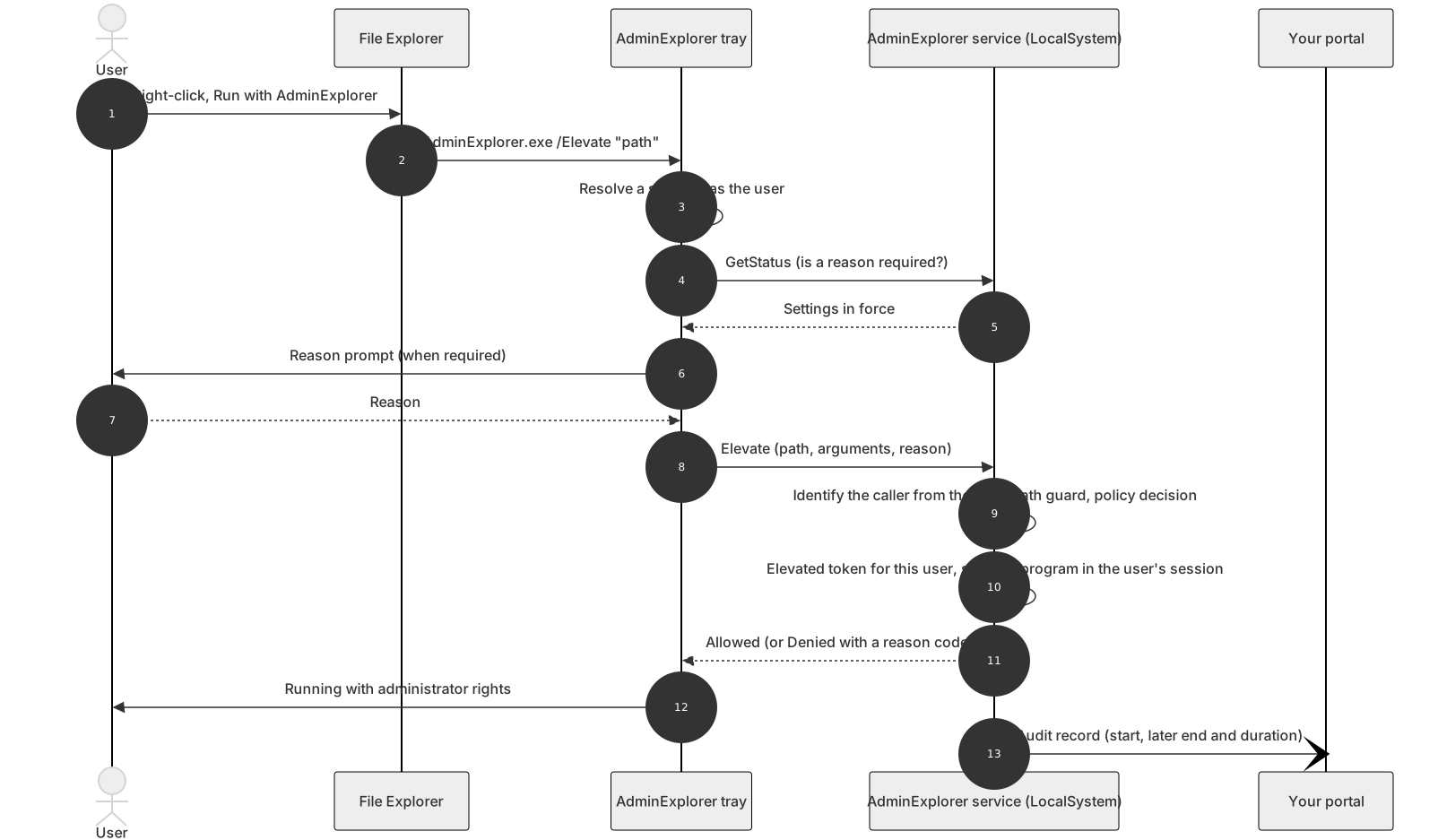
AdminExplorer elevates one program at a time, in the user’s own session and under the user’s own identity. The user is never a local administrator. Every decision is made by the AdminExplorer service on the device (running as LocalSystem), from the policy you manage in this portal.
Two ways to elevate
Section titled “Two ways to elevate”| Pre-approved (Flow A) | On demand (Flow B) | |
|---|---|---|
| How the user starts it | Normally: double-click, Start menu, or the AdminExplorer tray menu | Right-click a file, Run with AdminExplorer (or Run a program with AdminExplorer… in the tray) |
| Which files | .exe entries on your approved list |
.exe, .ps1, .msi and shortcuts (.lnk) to them |
| Prompt | None, no UAC, no reason | Reason prompt when required; approval when Manual |
| Matching | The approved path, also as a folder prefix | Exact approved path, then rules (Enterprise), then “any application” (Enterprise, when on) |
| Tiers | Standard and Enterprise | Standard: approved list only. Enterprise: also rules and Manual approval |
Approved .ps1 and .msi entries cannot be caught at launch like an .exe, so the tray starts them through the on-demand flow: they get the reason prompt and, with Manual approval, the approval queue. To start a script silently, wrap it in an approved .exe.
An approved entry that is assigned to Entra groups is on demand only; see Entra group targeting.
The decision order
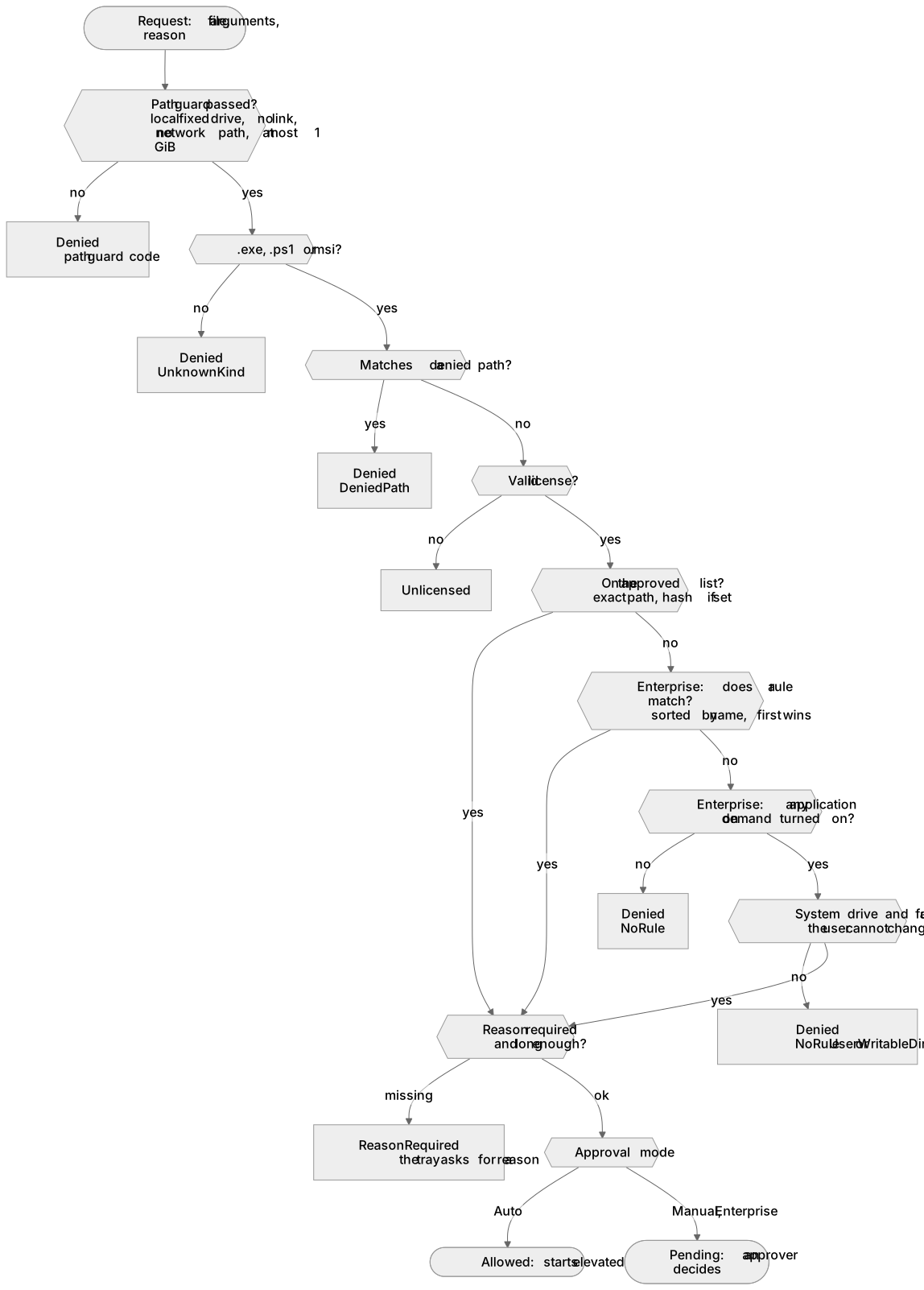
Section titled “The decision order”Deny always wins. For an on-demand request the service checks, in this order:
- Path guard: the file must be on a local fixed drive, reached without links, junctions or network paths, readable by the user and at most 1 GiB. It is opened once and locked against changes until the program has started.
- Kind: only
.exe,.ps1and.msi(a shortcut is resolved as the user first). - Denied paths: the built-ins (
Downloads, the user’sAppData\Local\Temp,C:\Windows\Tempon the system drive) and your own patterns. - License: no valid license means every request is refused (“Unlicensed”).
- Approved list: exact path, case-insensitive; the SHA-256 must match when the entry has one.
- Rules (Enterprise): path pattern, publisher or hash, sorted by name; the first match decides.
- Any application on demand (Enterprise, when turned on): see Any application on demand.
- No match: Denied (NoRule).
- Reason gate, then the approval gate (Auto or Manual).
Arguments are checked by kind: an .exe gets them as typed; an .msi accepts only display and restart switches such as /qn, /passive or /norestart (never a property, transform or patch); a .ps1 gets script parameters, but never -Command, -EncodedCommand, -File or -ExecutionPolicy.
The reason
Section titled “The reason”With Users must type a reason on (the default), every on-demand request needs a reason of at least the minimum length (default 2 characters, 1 to 1024). Whitespace runs count once and invisible characters do not count. The reason is stored in the audit record. For “any application” matches a reason of at least 10 characters is always required. Pre-approved programs (Flow A) never ask.
Approval modes
Section titled “Approval modes”| Mode | What happens | Tier |
|---|---|---|
| Auto | A matched request starts at once. | Both |
| Manual | A matched request waits for an approver in the portal. The file stays locked until the request is final. | Enterprise (on Standard the device behaves as Auto) |
With Manual approval the approver gets a mail and sees the request under Approvals (refreshed every 15 seconds) with the user, device, file, SHA-256, publisher, arguments and reason. Approving starts the program in the user’s session within a few seconds; rejecting shows your comment to the user. A request that is not decided within the pending request lifetime (default 60 minutes, 1 to 1440) expires. Before starting an approved request the service checks again that the file is unchanged and that the user is still signed in to the same session.
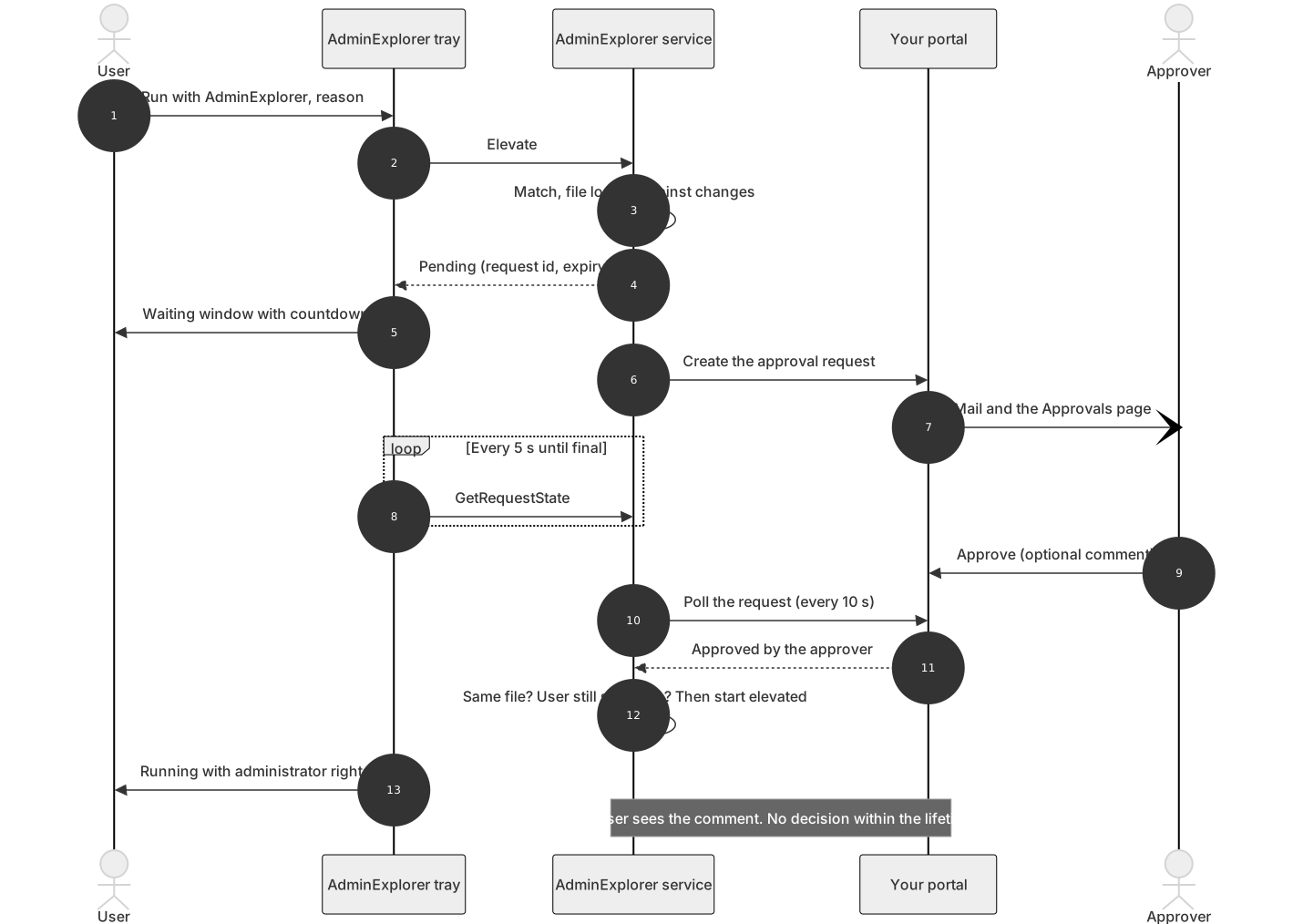
Pending requests live in the service’s memory: a service restart drops them, and the user asks again.
What the user sees
Section titled “What the user sees”- Allowed: a notification “Running [program name] with administrator rights”.
- Reason required: the reason dialog; Request is enabled once the text is long enough.
- Pending: a small “waiting for approval” window with a countdown. Closing it does not withdraw the request; an approver can still accept it.
- Rejected or expired: a message, with the approver’s comment when there is one.
- Denied: a plain-English explanation (not approved, blocked folder, arguments not allowed, file not the approved version, …), plus the reason code and request id under details. The codes are listed in Troubleshooting.
- Unlicensed: “AdminExplorer is not licensed on this device. Contact your IT department.”
Child processes
Section titled “Child processes”By default a program started elevated cannot pass elevation on to programs it starts. On Enterprise you can allow it per approved entry or rule (Allow child elevation): direct children of the elevated program are then elevated too. A child whose manifest demands administrator rights (requireAdministrator) cannot be started from an elevated program; approve that program itself instead.
Every attempt is audited
Section titled “Every attempt is audited”Each attempt, in both flows, is written to the Windows Application log (source AdminExplorer) and, on enrolled devices, to the portal: device, user, file, arguments, SHA-256, publisher, decision, reason code, the user’s reason, what matched, approval mode, approver, start, end and duration. See Audit and reports.
Related guides
Section titled “Related guides”AdminExplorer documentation, published by Circle of Bytes ApS. Customers sign in at portal.adminexplorer.circleofbytes.com.